Hiring Chat Guide: What the AI Copilot Does and Costs
How to use the TalentsGrid hiring chat: approvals, CV attachments, evidence-based scoring, comparing, outreach, slash commands, credit costs and prompt tips.
On this page
- Key takeaways
- How do I start a chat?
- What can the chat do?
- How do approvals work?
- How do I attach a CV or a job description?
- How do I score a CV against a job?
- How do I compare candidates?
- How do I draft emails and outreach?
- Which slash commands exist?
- How many AI credits does the chat use?
- How do I write better prompts?
- FAQ
The hiring chat is the center of TalentsGrid. You paste a job description, drop in a CV, ask for a shortlist or draft an email, and the copilot answers with cards you can act on. This guide explains what it can do, how its approval step works, what each action costs in AI credits and how to write prompts that get useful answers.
Key takeaways
- The chat can create jobs, read CVs, score candidates against a job with evidence, compare 2 to 5 candidates, prepare interviews, draft emails and outreach, and search your own candidate database.
- It never saves a candidate or a job on its own. You approve a preview first. Card buttons such as shortlist, reject and move stage run when you click them and show an Undo link.
- Reading one CV costs 1 credit. A typed message costs 1 credit to understand plus the cost of the task. Slash commands skip that first step.
- Company research and talent mapping cost 2 credits. Free includes 150 credits a month, Pro 1,500 and Business 15,000.
How do I start a chat?
There are three ways to open one.
- Select New chat in the sidebar. You need permission to view candidates to see this button.
- Open a job and select Ask HRMX. The chat is linked to that job, so scoring and search use its requirements.
- Open a candidate’s page and, under their applications, select Open in hiring chat.
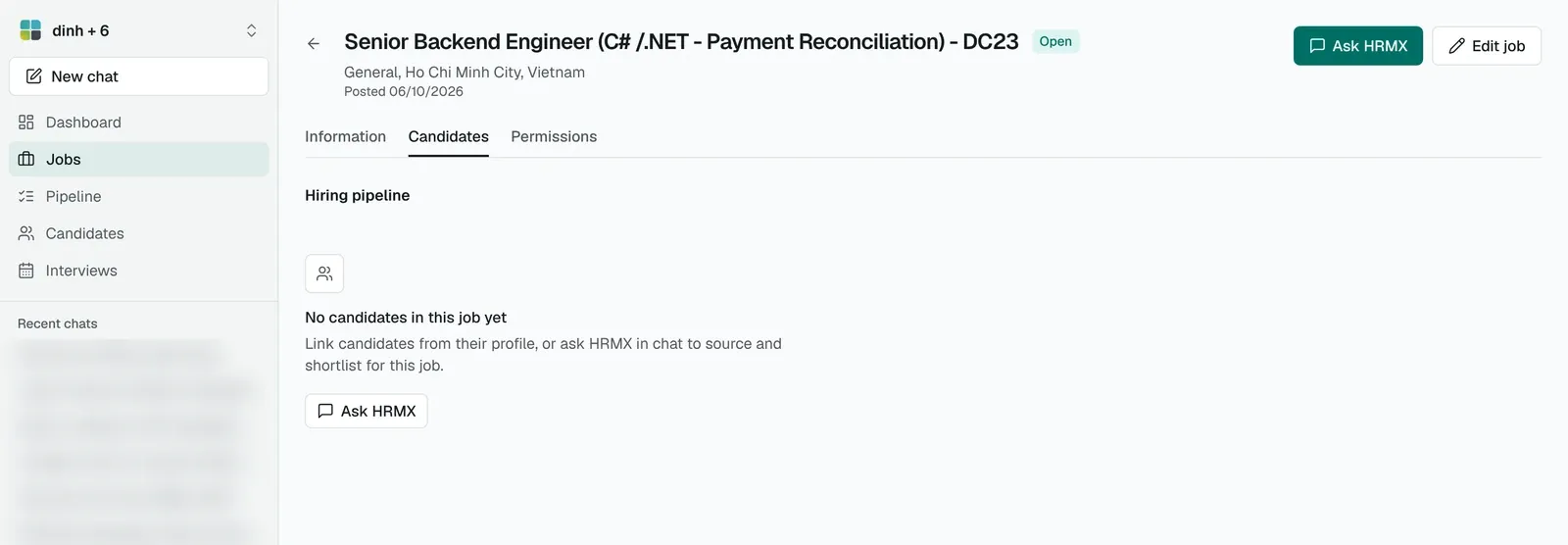
Step 2: the Ask HRMX button on a job page opens a chat linked to that job.
The start screen offers four starters: create a job from a description, score a CV against a job, draft outreach emails and import candidates from CSV. In the sidebar, Recent chats lists your sessions. On the Chats page you can search, pin, rename and delete a session.
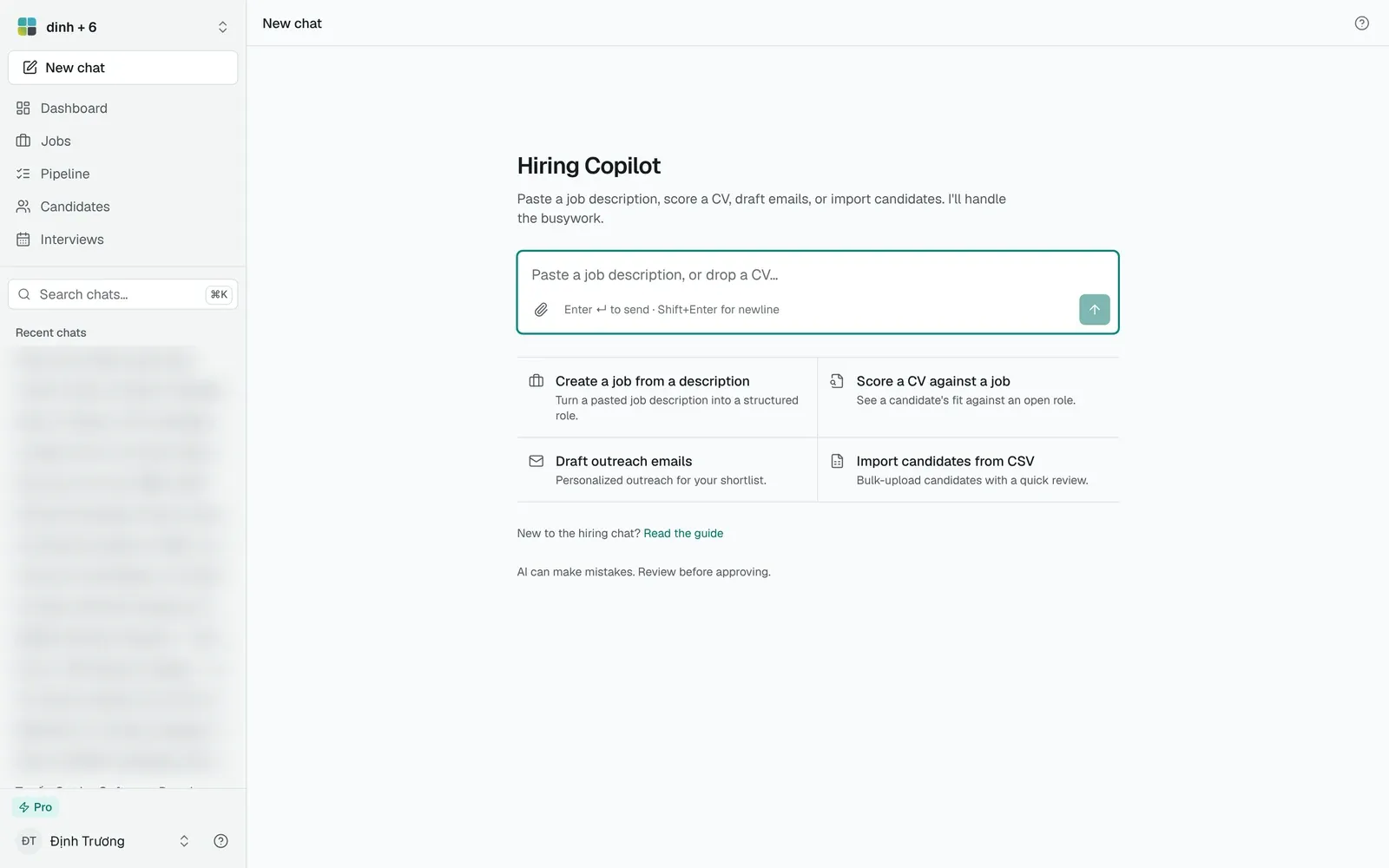
The start screen with its four starters.
In the composer, press Enter to send and Shift+Enter for a new line.
What can the chat do?
- Create a job from a pasted description, with a form of fields to review.
- Read a CV and prepare a candidate profile.
- Score a CV against a job and show where the score comes from.
- Search your own candidates by skills or by the linked job.
- Compare 2 to 5 candidates side by side.
- Prepare an interview: screening questions and interview prep for a candidate.
- Draft emails such as interview invitations, and AI outreach sequences for one candidate at a time.
- Generate a job description, a Boolean search string or an outreach template.
- Research a company and map companies hiring for a profile.
- Answer questions about your own hiring data.
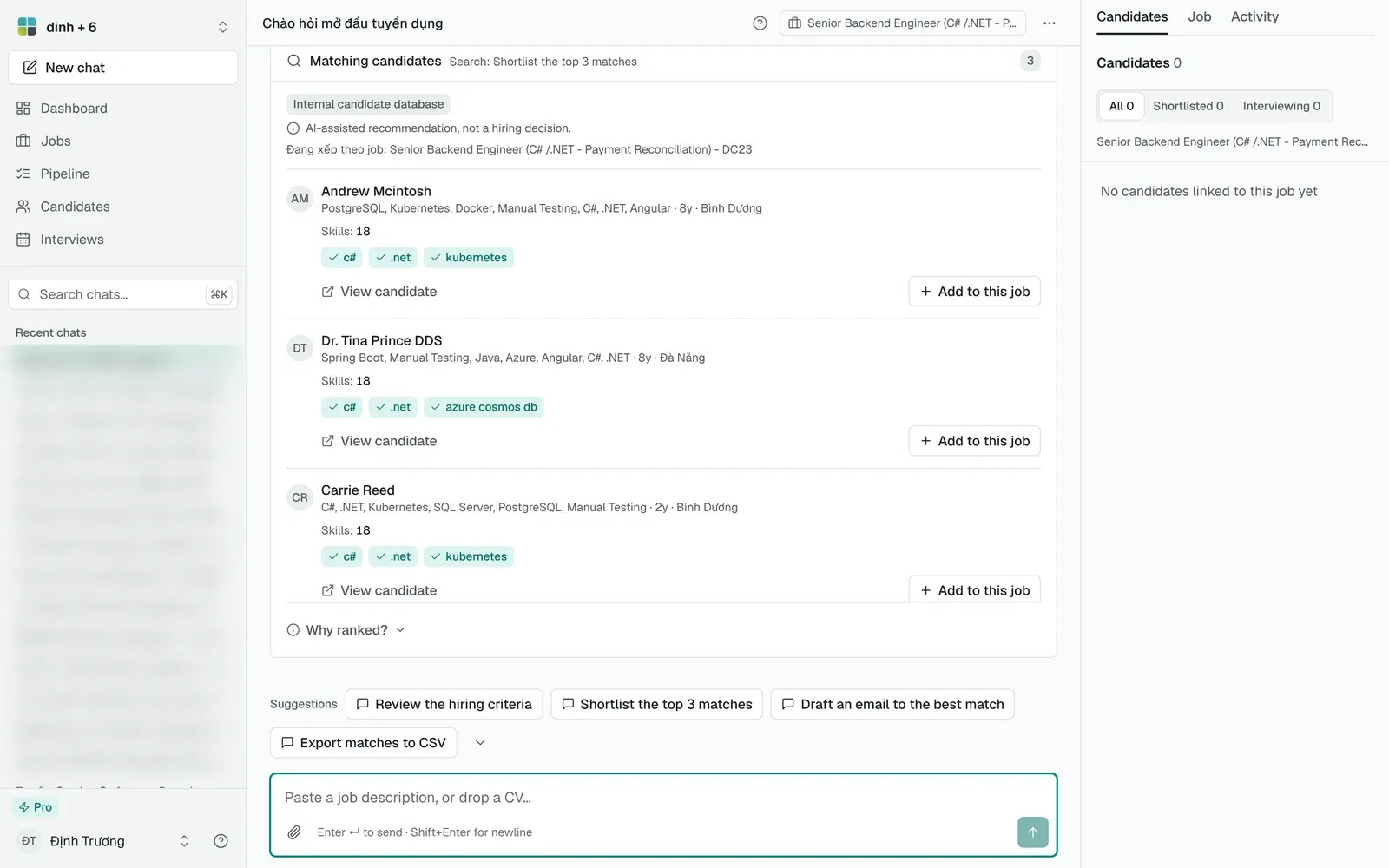
A Matching candidates card from a search of your own candidate database.
Every answer carries the note “AI can make mistakes. Review before approving.” The AI recommends. You decide.
How do approvals work?
Anything that writes to your workspace waits for you. The chat shows a preview card, and nothing is saved until you act on it.
| What you asked for | What you see | What you select |
|---|---|---|
| Save or update a candidate | A “Save candidate” or “Update candidate” card | Approve or Reject |
| Create a job | A “Create job” card with editable fields | Create job or Discard |
| Import a CSV | An import preview with row counts | Confirm import or Cancel |
| Send an email | An “Email preview” with To, Subject and Message | Send, Edit or Discard |
| Change search criteria | A “Criteria adjustment” card | Apply & re-rank or Discard |
The chat header shows how many decisions are waiting, for example “2 pending decisions”. A pending preview expires after 24 hours, and an expired card tells you “This action has expired”.
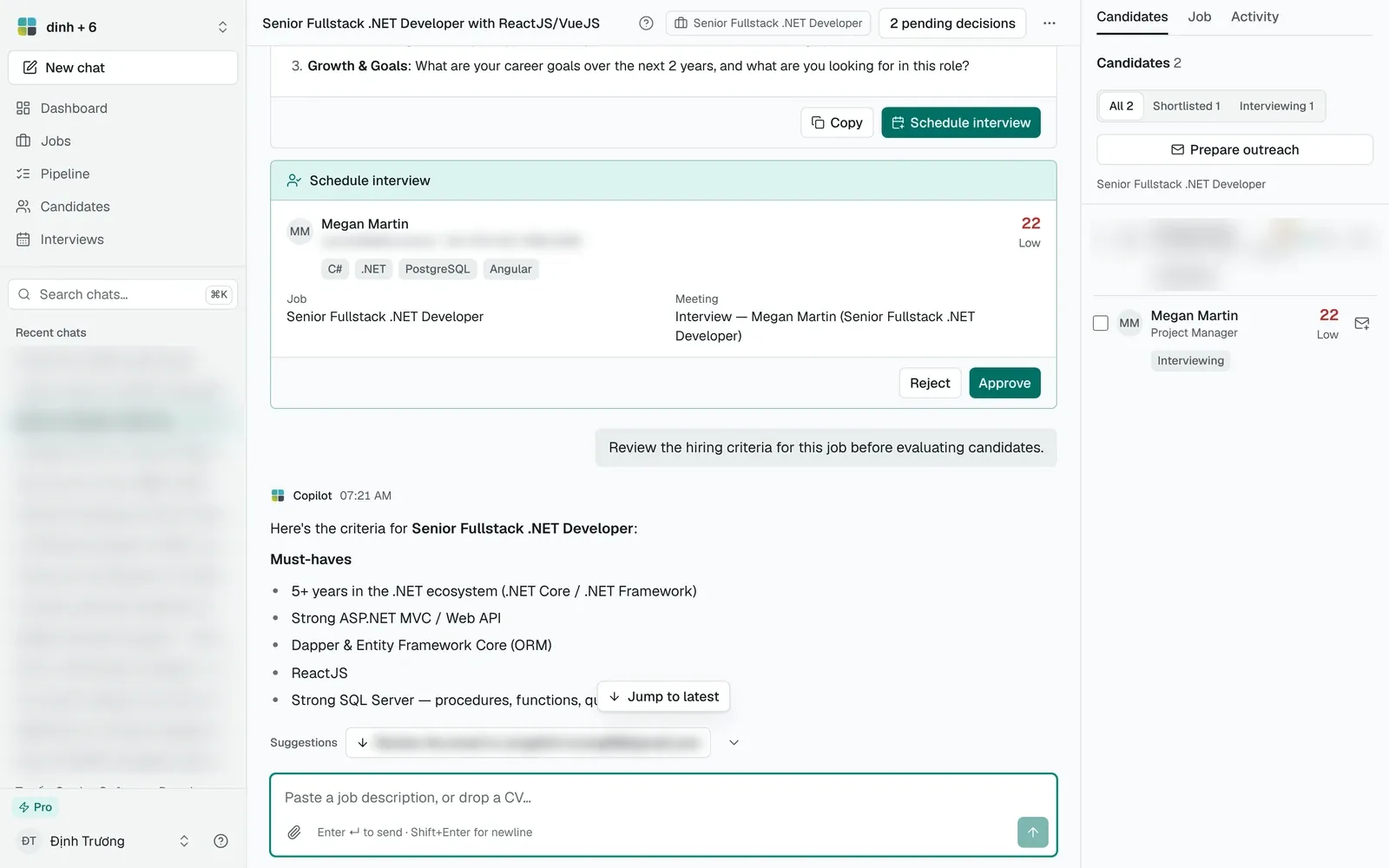
A pending Schedule interview preview. Nothing happens until you select Approve, and the header counts the decisions that are waiting.
Actions you start from a candidate card button are different, because they never create or update a candidate or a job. Shortlist, Move to interview and reject apply as soon as you click the button, without a second confirmation. Draft outreach prepares an email for you to review and send. Schedule interview asks for a date and time first, then Confirm schedule.
After a stage change, a receipt appears in the chat, for example “Shortlisted Linh Tran”, with an Undo link. Undo restores the earlier stage. It is offered only while it cannot overwrite newer work. If the candidate has moved since, the chat says so and the Undo link is gone.
How do I attach a CV or a job description?
- Select Attach CV in the composer, or drop the file on it. PDF, Word and plain text files work, up to 15 MB.
- Wait for the “CV attached” chip. If the upload fails, select Retry, or remove the file.
- Select Send. You can send the CV alone or add a message.
- Review the candidate preview and select Approve.
The copilot reads the CV and fills the profile. If a candidate with the same email or phone already exists, you get an “Update candidate” card for that person instead of a duplicate. If the CV has an email but no readable name, the chat asks you to enter the name before it shows the preview. A scanned image with no text layer cannot be read.
To bring in a job description from a file, select Attach JD. The chat reads the text, and the chip then offers Create job and a talent mapping button. If your workspace stores CVs in Google Drive and Drive is not connected, the chat tells you to connect it in Settings and upload again. See the storage guide.
How do I score a CV against a job?
- Open the job and select Ask HRMX, or paste the job description and create the job from the card.
- Attach a CV, or pick “Score a CV against a job” on the start screen.
- Read the Fit score card.
The card shows an overall score made of two parts: skills (60%) and responsibilities (40%). The AI finds evidence in the CV. Fixed code does the math, so the same evidence gives the same score. Each requirement is labeled Match, Partial or Not evidenced, and requirements are weighted as core, important, supporting or minor. If a critical responsibility is missing, the responsibility score is capped and the card says so.
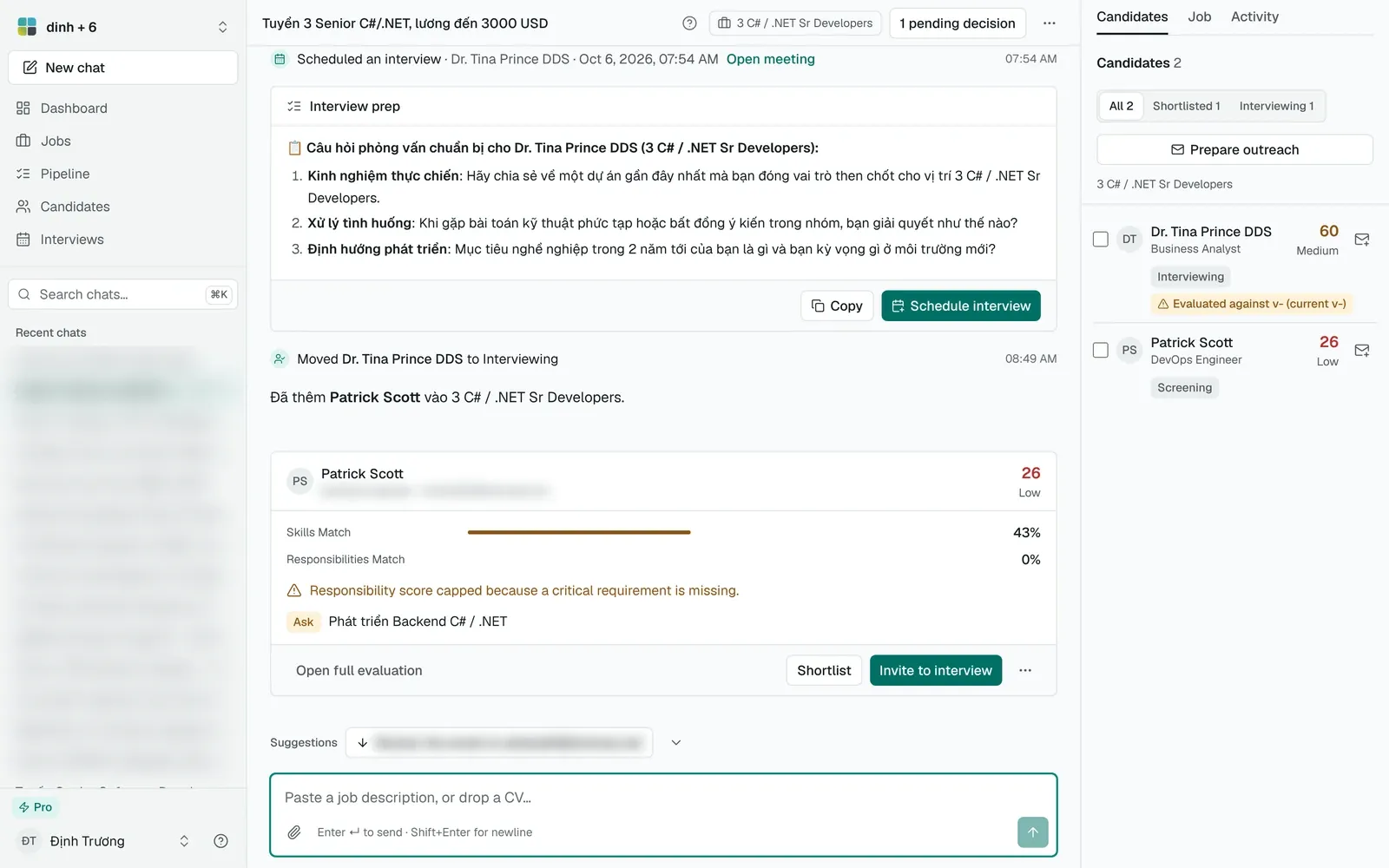
A score card with its capped-score warning, a follow-up question to ask, and the card buttons.
“Not evidenced” is not a penalty or a rejection. It means the CV does not show the item, and the chat suggests a follow-up question to ask. Select Why ranked? to see the criteria and weights behind a ranking.
The chat builds hiring criteria from the job description. Review them, edit if needed and select Confirm criteria. If you score before confirming, results carry an “unconfirmed criteria” warning. When you change the criteria, older scores are marked as evaluated against an earlier version, and you can re-evaluate.
A score marked “estimated” is a rough figure from skill matching. Run the CV through the chat to get the official score.
How do I compare candidates?
Type /compare with two to five names, for example /compare Linh Tran, Minh Nguyen. You can also select candidates in the Candidates panel and press Compare. You need at least two and no more than five.
The result has two tabs, Side-by-Side and Breakdown, with evidenced strengths, gaps to probe in the interview and a short written comparison. If candidates were scored against different versions of the criteria, a banner marks the ranking as provisional and offers Re-evaluate.
How do I draft emails and outreach?
- For an interview invitation, type
/email name@example.com, or use the Draft outreach button on a candidate card. An Email preview appears. Edit it, then select Send. Candidates marked do-not-contact, or without an email address, are blocked. - For a sequence of messages, select Create AI sequence on a candidate’s page, or Prepare outreach in the chat. Choose the language, tone, number of messages, call to action and send window, then select Generate AI draft. This uses 1 credit.
- Tick “I have reviewed every message in this sequence”, then select Approve. Editing a message clears the approval.
Sequences are created and approved one candidate at a time. Nothing is sent in bulk.
Which slash commands exist?
Type / in the composer to open the menu. Choosing a command only fills the composer. Add your details and press Send to run it.
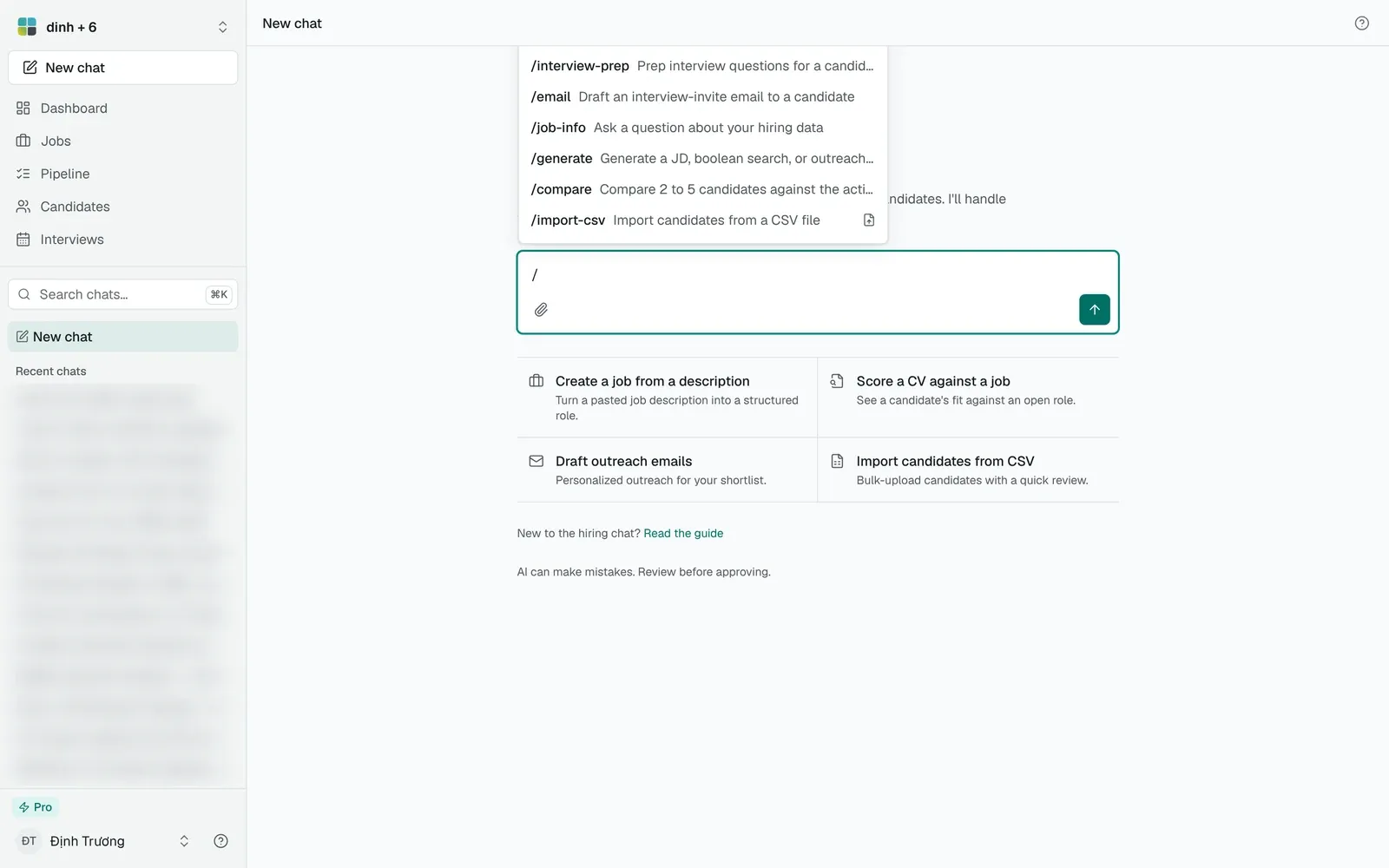
Typing / in the composer opens the command menu.
| Command | What it does |
|---|---|
/create-job | Create a job from a description |
/internal-sourcing | Find internal candidates by skills or the linked job |
/talent-mapping | Map companies and core technologies against a job description |
/interview-prep | Prepare interview questions for a candidate |
/email | Draft an interview invitation email |
/job-info | Ask a question about your hiring data |
/generate | Generate a job description, Boolean search or outreach email |
/compare | Compare 2 to 5 candidates against the job criteria |
/import-csv | Import candidates from a CSV file |
/help | Show the list of commands |
Under the composer, the Try asking suggestions and the Suggestions dock offer likely next steps, such as “Shortlist the top 3 matches” or “Prep interview questions”.
How many AI credits does the chat use?
Most actions cost 1 credit. These are the costs that matter day to day.
| Action | Credits |
|---|---|
| Reading an attached CV | 1 |
| A typed message, to understand what you want | 1, plus the task below |
| Scoring a CV against a job | 1, and 1 more for responsibility evidence when the CV has work history and the job has responsibilities |
| Comparing candidates | 1 per comparison |
| Searching internal candidates | 1 |
| Interview prep or screening questions | 1 |
| Drafting an email | 1 |
| Generating a job description, Boolean search or outreach template | 1 |
| Answering a question about your data | 1 |
| Generating an AI outreach sequence | 1 |
| Company research or talent mapping | 2 |
/help and /import-csv | 0 |
Slash commands skip the “understand what you want” step, except /create-job, so they usually cost one credit less than the same request typed in plain words. Shortlisting, rejecting and moving a candidate between stages use no AI.
Credits reset each month: Free 150, Pro 1,500, Business 15,000. On Pro and Business the credits belong to the plan, so every workspace you own shares the same monthly pool. The Dashboard shows “AI credits left”. When they run out, the chat tells you to upgrade your plan. Your data and non-AI features keep working. See the pricing page. Under Settings and the AI usage tab, AI Activity lists what the assistant did in your workspace.
How do I write better prompts?
- Paste the whole job description. A title alone gives the scorer little to work with.
- Name people exactly. Use a full name or an email in
/compare,/emailand/interview-prep. - Ask one thing per message. The copilot picks one task for each message, so a focused request gets a focused card.
- Refine a search in plain words. After a search, a short follow-up such as “only candidates with 5 or more years” produces a Criteria adjustment preview. Your job description stays untouched until you select Apply & re-rank. You can undo it afterward.
- Ask about the evidence. Chips like “Why this score?” and “What should I ask next?” turn a score into interview questions.
- Prefer slash commands for repeat tasks. They are predictable and cheaper.
FAQ
Does the AI save candidates automatically?
No. Candidate and job saves wait for your approval of a preview. Stage buttons on a candidate card run when you click them, and you can undo a stage change from the chat receipt.
Can the AI reject a candidate on its own?
No. It can recommend, but a stage change happens only when you press a button. A “Not evidenced” mark in a score is a prompt for a question, not a rejection.
Why did my message use 2 credits?
A typed message is first read to work out what you want, which costs 1 credit, and then the task costs its own credit. Use a slash command such as /compare or /email to skip the first step.
What happens when I run out of credits?
AI actions stop and the chat tells you to upgrade for more credits each month. Browsing, editing candidates and moving them through the pipeline do not need credits. Credits refresh monthly with your plan.
Which files can I attach?
PDF, Word and plain text files up to 15 MB. Candidate CVs read through Quick import on the Candidates page are limited to 5 MB. See how CV import works.
Can I use the chat in Vietnamese?
Yes. TalentsGrid works in English and Vietnamese, and the chat replies in the language of the session.
What if I leave a preview alone?
It waits as a pending decision for 24 hours and then expires. Nothing is saved. You can ask again.
Where do I learn the rest of the app?
Start with getting started with TalentsGrid, then read the roles and permissions guide if you work with teammates.