Workspace Storage Setup: TalentsGrid Cloud or Google Drive
Choose where TalentsGrid stores CVs: managed cloud or your Google Drive. Connect Drive, see what Google asks for, switch providers, disconnect and export data.
On this page
- Key takeaways
- Which storage option should I choose?
- How do I choose storage when I create a workspace?
- How do I connect Google Drive during setup?
- How do I connect or switch storage later?
- What permissions does Google ask for?
- What happens to my files when I switch?
- How do I disconnect Google Drive?
- How do I get my data out?
- FAQ
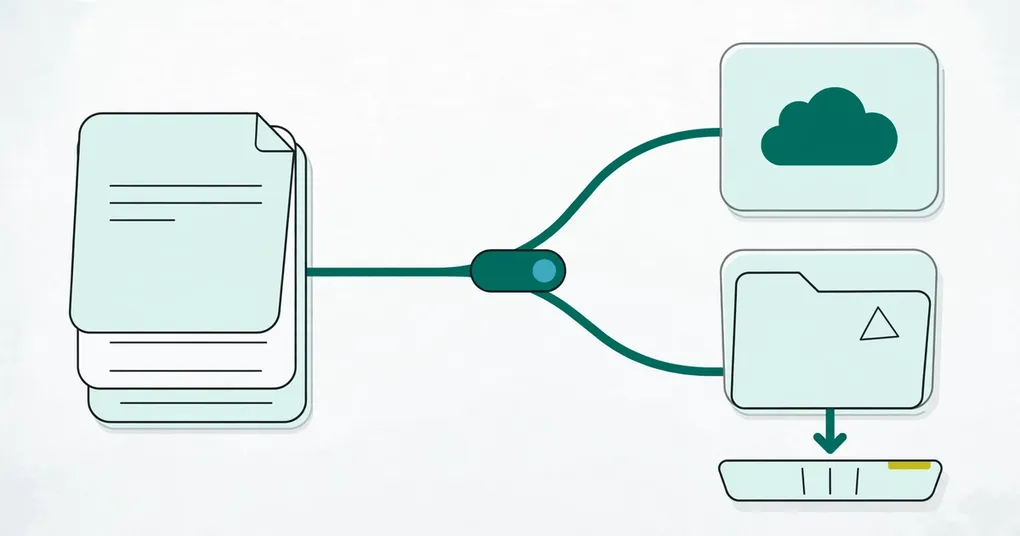
Every workspace stores candidate CVs and attachments in one place that you choose. You can use the managed cloud storage that comes with TalentsGrid, or keep the files in your own Google Drive. This guide shows how to pick, how to connect Drive during setup or later, what Google asks you to allow, and what happens when you switch or disconnect.
Key takeaways
- Two options: Managed cloud storage (built in, nothing to set up) and Google Drive (files stay in your organization’s Drive).
- Pick during workspace setup, or change later under Workspace settings, Storage and reporting.
- Connecting Drive opens a Google window where you sign in and approve access. It takes about a minute.
- Switching changes where new uploads go. Use Test connection after any change.
- You can export candidates to Excel, sync reports to Google Sheets and download CVs, so your data is not locked in.
Which storage option should I choose?
| Managed cloud storage | Google Drive | |
|---|---|---|
| Label in the app | ”Built in" | "Your workspace” |
| Setup | None. Ready as soon as the workspace exists | One Google sign-in |
| Where files live | A bucket managed by TalentsGrid for your workspace | A folder in the Google Drive account you connect |
| Good when | You want the quickest start | Client or company policy says CVs stay in your Drive |
Both are available on every plan, including Free. If you are testing TalentsGrid, start with managed storage. If you recruit for a client who requires CVs to stay in their Drive, connect that Drive from the beginning, so files do not end up in two places.
How do I choose storage when I create a workspace?
The storage choice is step 2 of the setup that starts after you sign up.
- On Create your recruiting workspace, select Start setup.
- Name the workspace and select Next step.
- Under Choose CV storage, select Cloud storage (marked Recommended) or Google Drive. Choosing Google Drive shows a reminder: “You’ll connect Google Drive in the next step, before you start.”
- Select Create workspace. With Google Drive selected, the button reads Create and connect Drive.
If you chose Cloud storage, you are done. The setup shows Workspace ready.
How do I connect Google Drive during setup?
After Create and connect Drive, you land on a third step called Connect Google Drive (the address is /onboarding/storage). The page says “Google Drive is not connected yet”.
- Select Connect Google Drive. A Google window opens and asks for access. If nothing opens, allow pop-ups for the site and try again.
- Sign in with the Google account that should own the CV files, and approve the request.
- The window closes and the page shows “Google Drive is connected”. The message adds that new CVs for this workspace will be saved to your Drive.
- Select Go to dashboard. The button stays disabled until Drive is connected.
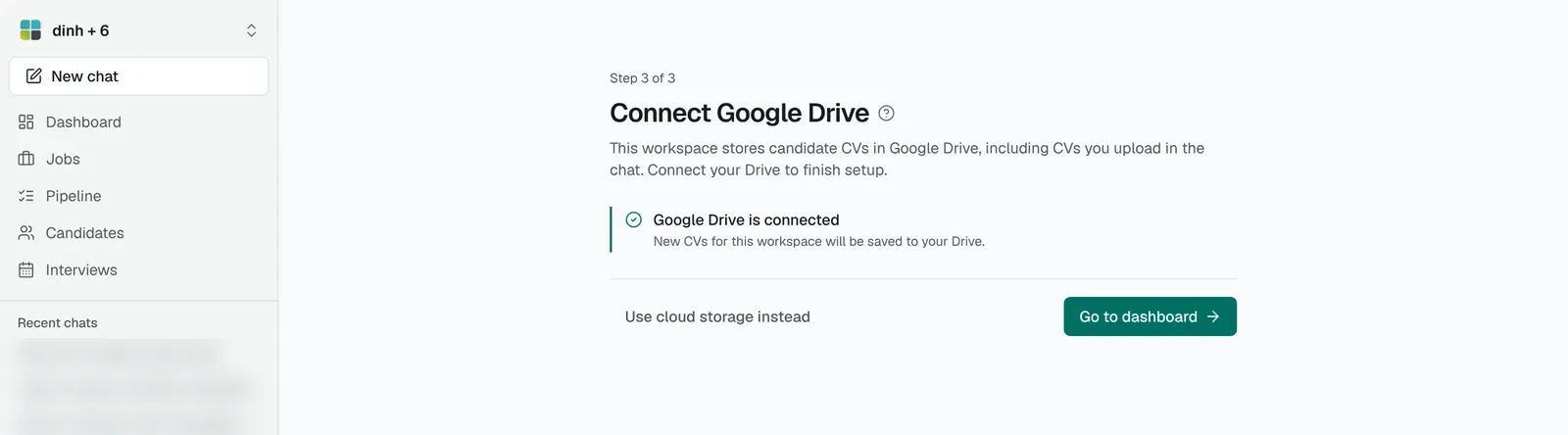
The Connect Google Drive step after Drive is connected, shown here for an account that already has Drive linked.
If you change your mind, select Use cloud storage instead. The workspace then uses managed storage, and you can connect Drive later.
How do I connect or switch storage later?
You need the “Manage cloud storage settings” permission. The Admin role has it. Without it, the tab shows a message that you cannot manage storage settings.
- Select the workspace name at the top of the sidebar, then Workspace settings.
- Open the Storage and reporting tab.
- In Document storage provider, select Google Drive. A message confirms “Storage provider switched to Google Drive”.
- The Google Drive connection section appears. Select Connect Google Drive and approve access in the Google window.
- When you see “Google Drive connected”, select Test connection. A passing check shows “Connection test passed”.
The provider panel shows the active provider, the connection state and a best-fit note, with a badge that reads Connected or Needs attention. The Google Drive panel adds when Drive was connected and by whom. A state of “Connection required” means Drive is selected but not connected yet. Connect it before anyone uploads a CV, because uploads to a Drive workspace stop working until the connection is in place.
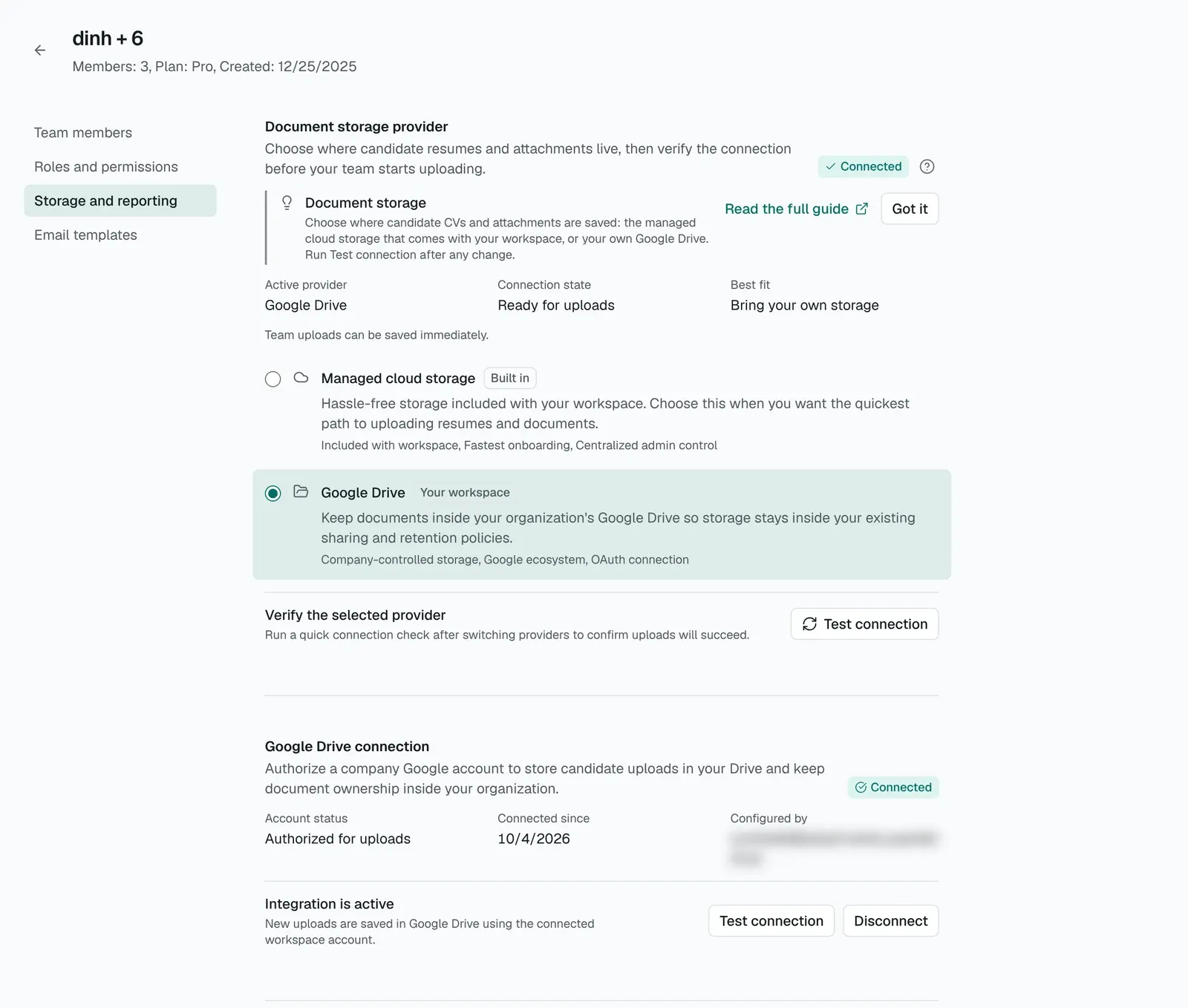
The Storage and reporting tab: pick the provider, then check it with Test connection.
To go back, select Managed cloud storage in the same list.
What permissions does Google ask for?
TalentsGrid asks for Google’s drive.file access. This is the narrow kind of Drive permission: it covers files and folders the app creates, and it does not give TalentsGrid access to the rest of your Drive. Google shows the exact wording on its own consent screen, so read it before you approve.
Once connected, TalentsGrid creates a folder in that Drive named CV_ followed by your workspace ID, and saves uploaded CVs inside it. The sign-in tokens are stored encrypted. Connect with a Google account your organization controls, not a personal account that someone could lose access to.
What happens to my files when I switch?
Switching sets where new uploads are saved. TalentsGrid does not copy files from one provider to the other. A CV uploaded earlier stays in the storage it was saved in. If you move from managed storage to Drive, older CVs remain in managed storage and new ones appear in Drive.
CVs you drop into the chat follow the same rule. In a Drive workspace they are saved to Drive. If Drive is not connected, the chat tells you to connect it in Settings and then upload the CV again.
How do I disconnect Google Drive?
- Open Workspace settings, then Storage and reporting.
- In Google Drive connection, select Disconnect.
- Confirm in the Disconnect Google Drive? dialog. It warns that CV uploads stop working until Drive is reconnected.
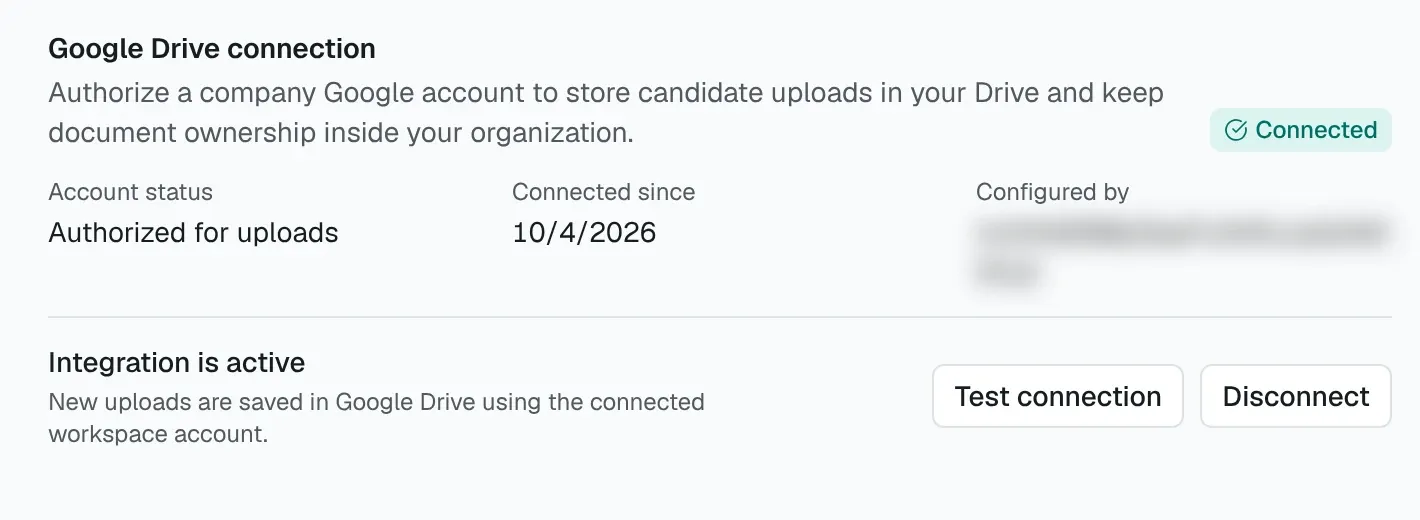
The Google Drive connection section, with Test connection and Disconnect on the right.
Disconnecting removes the connection from TalentsGrid. It does not delete anything in your Drive. If you also want to withdraw Google’s permission, remove TalentsGrid from the third-party access list in your Google Account settings. After disconnecting, switch the provider back to Managed cloud storage if you want uploads to keep working.
How do I get my data out?
Your data is yours, so every route out is available on every plan.
- Candidates to Excel. On the Candidates page, select Export Excel.
- Matches to CSV. In the chat, ask for “Export matches to CSV” and select Download when it is ready.
- Reports to Google Sheets. On Storage and reporting, the Reporting sync section connects Google Sheets, creates a spreadsheet and syncs your pipeline, candidates and jobs daily or weekly. Run now syncs on demand.
- CV files. On a candidate’s page, Download CV saves the file. With Google Drive storage, the files are already in your Drive.
Your CVs are used to read and score candidates for you, and they are not used to train AI models.
FAQ
Can I use my own Google Drive on the Free plan?
Yes. Google Drive integration is included on Free, Pro and Business.
Does TalentsGrid see everything in my Google Drive?
No. It uses Google’s drive.file access, which is limited to files the app creates or opens. It does not give the app a view of your other files.
Will my old CVs move when I switch providers?
No. Switching affects new uploads only. Files you uploaded before stay in the storage where they were saved.
Who can change storage settings?
Members whose role includes “Manage cloud storage settings”. The built-in Admin role has it. Other members see a message that they do not have permission. See the roles and permissions guide.
What does “Managed storage is not configured yet” mean?
The server’s storage credentials are missing, so managed storage cannot be used. Contact support before selecting it.
The Google window did not open. What should I do?
Your browser probably blocked the pop-up. Allow pop-ups for the TalentsGrid site, then select Connect Google Drive again.
Do two workspaces share one Drive connection?
No. Each workspace has its own Drive connection and its own CV_ folder. If a client requires strict separation, connect a separate Google account for that client’s workspace.
Where do I go next?
Read getting started with TalentsGrid for the full first-day setup, or the hiring chat guide to start scoring CVs.