AI Resume Parsing: How CV Import Works in TalentsGrid
TalentsGrid reads a CV with AI and fills the candidate profile for you to review. Formerly called Magic Import. See the steps, file types and credit cost.
On this page
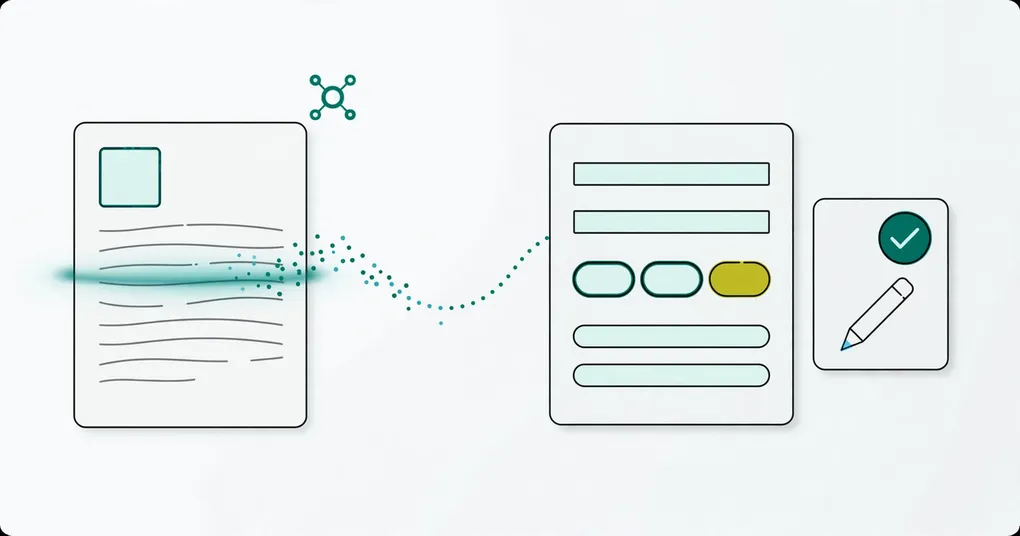
In February 2026 we announced a feature called Magic Import. The name is gone from the app, but the feature is not. It now lives in two places: a quick import in the Add candidate dialog, and the chat, where you can drop a CV and let the copilot fill the profile. This post explains how both work today.
TalentsGrid is an AI hiring copilot for freelance recruiters and small teams: it scores each CV against your job with quotes as evidence, turns gaps into interview questions, and keeps your candidate data yours.
Key takeaways
- AI resume parsing in TalentsGrid reads a CV and fills the candidate fields: name, email, phone, location, skills, current position, current company and years of experience.
- You review everything before it is saved. The AI fills the form; you decide what goes in.
- Reading one CV costs 1 AI credit. The Free plan includes 150 credits a month.
- PDF and Word (.docx) CVs are read directly. Save an old .doc file as .docx or PDF first.
What happened to Magic Import?
Magic Import was renamed. The button is now called “Quick import from CV” in the Add candidate dialog, and the same CV reading is built into the chat. We kept this URL so old links still work.
The idea has not changed: you should not retype a CV into a form. What changed is where you do it. Most recruiters spend their day in the chat, so dropping a CV there is now the main route.
How do I import a CV in the chat?
Drop the CV into the chat and the copilot reads it, then shows a preview of the candidate for you to approve. Nothing is saved until you approve.
- Open the chat and attach the CV in the composer.
- The copilot reads the file and builds a candidate profile.
- A preview card shows what it found. If a candidate with the same email or phone already exists, the card is an update to that person. Otherwise it is a new candidate.
- Approve the preview to save it, or discard it.
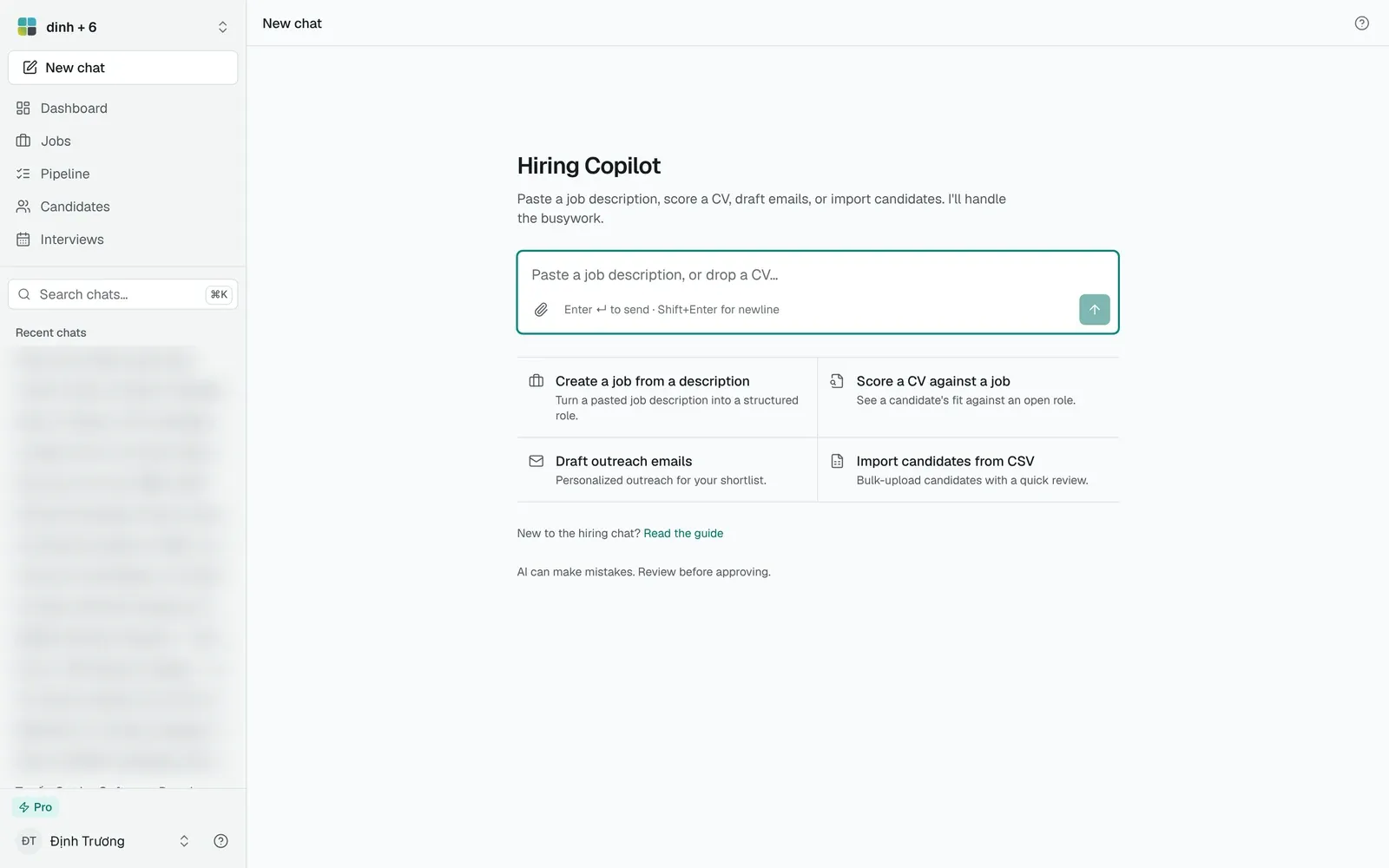
Attach the CV with the paperclip in the composer, or drop the file on it.
If the CV has an email but no readable name, the copilot asks you for the name before it shows the preview.
This is the same rule we apply to every write in the product: the AI proposes, you approve. It never adds, rejects or moves a candidate on its own.
How do I use Quick import from CV?
Quick import fills the Add candidate form from a file, and you edit the form before saving.
- Go to Candidates and choose Add candidate.
- Drop a CV on the dialog, or click to choose a file. The limit is 5 MB.
- Wait while the AI reads the CV.
- The create form opens with the fields filled in. Fix anything that is wrong and save.
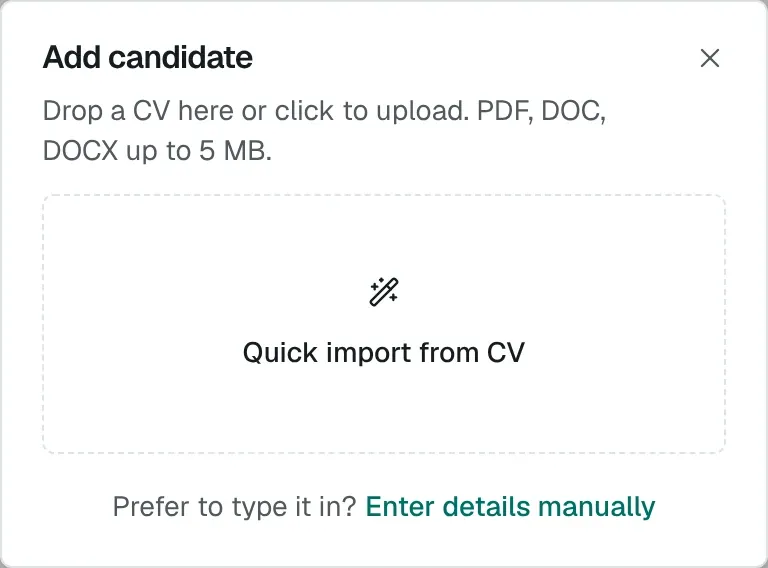
The Add candidate dialog. Drop a CV on Quick import from CV, or choose Enter details manually.
If the parser cannot read the file, the app tells you and you can type the details yourself with “Enter details manually”.
Which fields does it fill?
The parser fills these fields when the CV contains them:
| Field | Notes |
|---|---|
| Name, email, phone | Contact details |
| Location | City or country as written on the CV |
| Skills | Added to the skills field as a list, with variants such as “ReactJS” and “React.js” matched to one standard name |
| Current position, current company | From the latest role |
| Years of experience | As stated or worked out from the work history |
| Work history | Each past job with its role, company, dates, main tasks and measurable results |
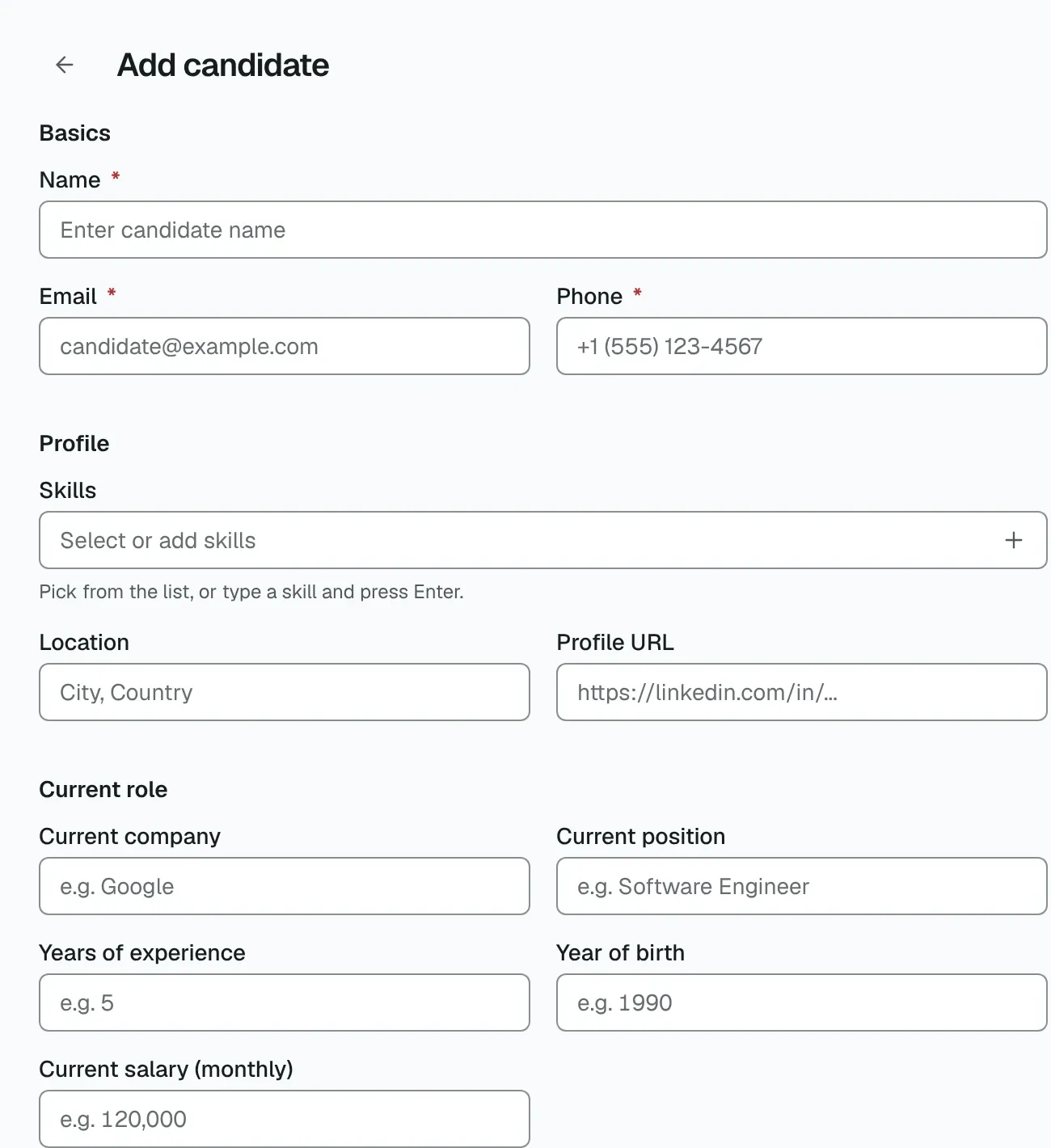
The Add candidate form that Quick import fills. You can edit every field before you save.
A field the parser finds nothing for stays as it was, so it never wipes out text you already typed. Check each value against the CV. Parsing is a time saver, and mistakes can happen.
Which file types work?
PDF and DOCX both work. TalentsGrid pulls the text out of the file, including Word documents saved as .docx, and sends that text to the AI to fill the profile. The upload dialog also accepts the old .doc format, but its text cannot be read, so save a .doc as .docx or PDF before you upload it. The chat also accepts plain text files.
Scanned CVs that are only images have no text layer, so the AI has nothing to read. A PDF or DOCX saved from Word or Google Docs works best.
How much does it cost?
Reading one CV costs 1 AI credit, taken from your plan’s monthly credits. Most AI tasks in TalentsGrid cost 1 credit. There are no credit packs.
| Plan | Price | AI credits per month |
|---|---|---|
| Free | $0 | 150 |
| Pro | $4.99 per month | 1,500 |
| Business | $29.99 per month | 15,000 |
The same credits cover scoring, interview kits and outreach drafts, so a Free workspace that spends everything on CV reading can read up to 150 CVs a month. See the pricing page for the plan limits.
What about spreadsheets?
If your candidates already sit in a spreadsheet, use the CSV import in the chat. You attach a CSV and the copilot shows a “Review the CSV import” card. As with CVs, the import waits for your approval. You can also export candidates to CSV at any time, which is part of keeping your data yours.
What happens after the import?
Once the profile exists, you can score the CV against a job. The score comes with quotes from the CV as evidence for each requirement, and scoring one CV takes about 1.5 seconds. Gaps become interview questions. Read more on AI CV screening and CV scoring with evidence.
If you collect CVs by email, our guide on how to stop asking candidates to resend their CV shows how to keep each file attached to the candidate.
FAQ
Is Magic Import still available?
The name is retired, but the feature is available. Use “Quick import from CV” in the Add candidate dialog, or drop a CV into the chat. Both read the CV with AI and fill the candidate profile. Both are included on every plan, including Free.
Does the AI save the candidate automatically?
No. In the chat, you approve a preview card before anything is saved. With Quick import, the form opens filled in and you press save yourself. The AI recommends and fills. You decide what enters your pipeline.
Can I import Word documents?
Yes, as .docx. Word CVs saved as .docx are read the same way as PDFs. The old .doc format cannot be read, so save it as .docx or PDF first. Plain text files also work in the chat.
Are my CVs used to train AI models?
No. CVs are not used to train AI models. Your files stay in the storage you chose for the workspace, and you can export your candidate data to CSV whenever you want.
How many credits does a CV import use?
Reading one CV uses 1 AI credit. Free includes 150 credits per month, Pro 1,500 and Business 15,000. Scoring and other AI tasks draw from the same pool.