Recruiting Email Templates: 6 Copy-Ready Examples
Copy recruiting email templates for outreach, interview invites, follow-ups, offers and rejections, with the exact placeholders TalentsGrid fills in for you.
On this page
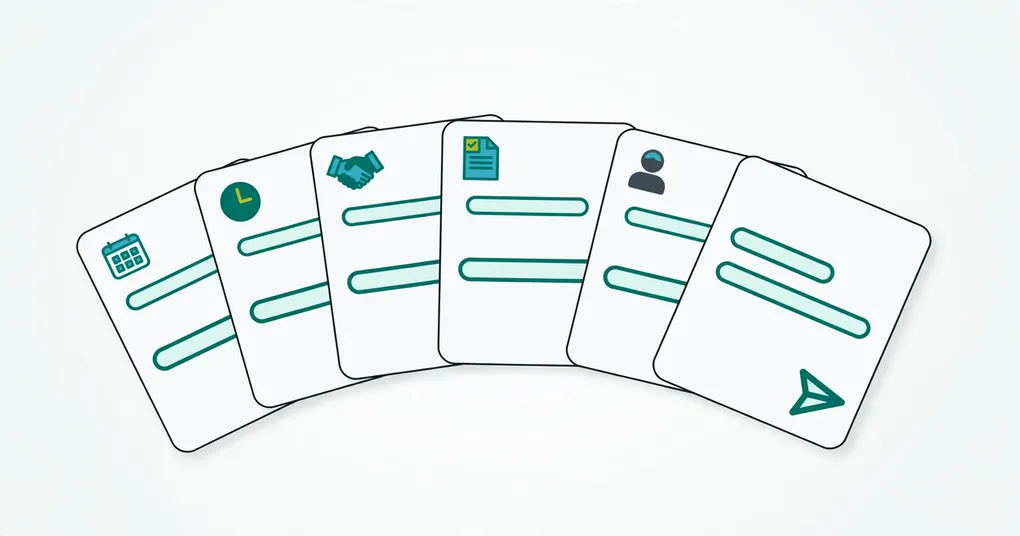
Recruiting email templates are saved messages with blanks for the candidate’s name, role and your company, so you write each kind of email once and reuse it. This post gives you six templates to copy, plus the checklist for making each one sound like a person wrote it.
TalentsGrid is an AI hiring copilot for freelance recruiters and small teams: it scores each CV against your job with quotes as evidence, turns gaps into interview questions, and keeps your candidate data yours. It also has an email template library. You write a template with {{placeholders}}, pick it on a candidate, and the subject and body are filled in for you to edit and send from your own mail app.
Key takeaways
- Keep one template per situation: first contact, interview invite, follow-up, offer, rejection.
- Use placeholders for facts (name, role, company) and write the human part yourself.
- Always read the filled draft before it goes out. A template saves typing, not judgment.
- In TalentsGrid, templates live in Workspace settings (shared) or your Account (personal), and open in your mail app when you click Open mail app.
What makes a good recruiting email template?
A good recruiting email template is short, names one clear next step, and leaves room for one personal line. Candidates ignore messages that read like mass mail, and a template that is 300 words long gets skimmed.
Use this checklist for every template you write:
- One purpose per email. An invite asks for a time. A rejection closes the loop.
- A subject line that says what it is: “Interview invitation”, not “Opportunity!”.
- The role and the company in the first two lines, so the candidate knows who you are.
- One ask at the end.
- A sign-off with your name.
- A gap for one sentence you add by hand, such as what you liked in their CV.
Say you send ten first-contact emails a week. Ten near-identical messages with the right name and role are better than ten rewritten from scratch with one wrong name.
Which placeholders does TalentsGrid support?
TalentsGrid supports 17 placeholders written with double curly braces, such as {{candidate_name}}. The editor lists them under “Available placeholders”. Spaces inside the braces are allowed.
| Group | Placeholders |
|---|---|
| Candidate | {{candidate_name}}, {{candidate_email}}, {{candidate_phone}}, {{candidate_location}}, {{candidate_current_company}}, {{candidate_current_position}} |
| Your side | {{company_name}}, {{sender_name}}, {{sender_email}} |
| Meeting | {{meeting_type}}, {{meeting_type_label}}, {{meeting_title}}, {{meeting_datetime}}, {{meeting_location}}, {{interviewer_name}}, {{meeting_notes}}, {{meeting_status}} |
When a value is missing, TalentsGrid fills a fallback. A candidate with no name becomes “there”, a missing position becomes “the role”, and a missing company name becomes “our company”. Fields with no sensible fallback, like phone or location, become empty. Check the draft before you send it: “Hi there” in the greeting tells you the candidate record has no name.
One limit to know about. When you compose from a candidate (the candidate list or a candidate page), no meeting is attached. {{meeting_datetime}} and {{meeting_location}} then show “TBD”. For interview invites, type the date and link into the body by hand, as the template below does.
Six recruiting email templates you can copy
Paste each into a new template. The text in square brackets is for you to fill in by hand.
1. First contact (outreach)
Subject: Your {{candidate_current_position}} background and a role at {{company_name}}
Hi {{candidate_name}},

I'm {{sender_name}} from {{company_name}}. I came across your profile as {{candidate_current_position}} and thought of a role we are hiring for: [role title].

[One sentence on why their experience fits.]

Would you be open to a 15-minute call this week? If now is not a good time, tell me and I will not follow up.

Best,
{{sender_name}}
2. Interview invitation
Subject: Interview invitation: [role title] at {{company_name}}
Hi {{candidate_name}},

Thank you for your interest in {{company_name}}. I'd like to invite you to a [format, e.g. 45-minute video] interview for the [role title] position.

Proposed time: [date, time and time zone]
Link or location: [link or address]
Who you will meet: [name and role]

If this time does not work, reply with two or three slots that do and I will rearrange.

Best,
{{sender_name}}
3. Follow-up after a screening call
Subject: Next steps after our call, {{candidate_name}}
Hi {{candidate_name}},

Thanks for talking with me today about the [role title] role at {{company_name}}.

Here is where we are: [one line on the next step and who owns it]. I expect to have an update for you by [date].

If you think of a question in the meantime, reply here.

Best,
{{sender_name}}
4. Candidate availability follow-up
Subject: Quick check on your availability, {{candidate_name}}
Hi {{candidate_name}},

I wrote a few days ago about the [role title] role at {{company_name}}. I know inboxes fill up.

Could you reply with a time that suits you for a short call? If you are not interested, a one-word answer is enough and I will close this on my side.

Best,
{{sender_name}}
5. Offer notice
Subject: Offer from {{company_name}}
Hi {{candidate_name}},

After our conversations, we would like to offer you the [role title] position at {{company_name}}. I'll send the formal offer, with salary, start date and terms, in a separate message.

Please reply with any questions. I'm happy to talk it through by phone.

Best,
{{sender_name}}
6. Rejection
Subject: Update on your application to {{company_name}}
Hi {{candidate_name}},

Thank you for the time you put into our process for the [role title] role at {{company_name}}.

We have decided not to move forward with your application. [One specific, honest sentence, if you can give one.] We will keep your details in mind if a closer match opens up.

I wish you success in your search.

Kind regards,
{{sender_name}}
A rejection is a decision a person makes. If TalentsGrid’s score flags gaps on a CV, that is input for you. It does not reject anyone, and it never sends this email for you.
How do you use email templates in TalentsGrid?
You create a template in settings, then pick it when you compose an email to a candidate. Here is the flow.
- Open Workspace settings, then the Email templates tab, for templates the whole workspace can use. For templates only you can see, open your Account, then Email templates.
- Select New template. Fill in a name, a subject and a body. Category, tags and CC recipients are optional. Name, subject and body are required.
- Save. Anyone who can manage the workspace can edit shared templates. Personal templates can be edited by their owner.
- On the candidates list or a candidate page, start an email to a candidate. The composer offers “Blank email”, your personal templates and the workspace templates.
- Choose a template. The subject and body fill in with that candidate’s details. Edit anything, add CC addresses, then select Open mail app.
The composer needs the candidate to have an email address. Without one it asks you to add it first.
New workspaces start with five shared templates: Warm Welcome, Professional Outreach, Interview Invitation, Offer Extension and Rejection Notice. Edit them to match your voice or replace them with the ones above.
Does TalentsGrid send the email for me?
No, not from the template composer. It opens a prefilled draft in your default mail app through a standard mailto: link, so you review the message and press send yourself. The email goes from your own address and sits in your own sent folder.
TalentsGrid also has outreach sequences, where the AI drafts a first message and follow-ups for one candidate and one job. You review and approve each sequence before anything is sent, and sequences are approved one candidate at a time, never in bulk. AI drafting uses credits from your plan, usually one per task. See the pricing page for plan limits.
Templates do not use credits.
FAQ
What should a recruiting email template include?
A subject that names the purpose, a greeting with the candidate’s name, the role and company in the first two lines, one clear ask and your sign-off. Add a gap for one personal sentence. Everything else is optional, and shorter emails get more replies.
Can I use different templates for different candidates in TalentsGrid?
Yes. You can keep as many templates as you want, and you pick one each time you compose an email. Workspace templates are shared with your teammates. Personal templates are visible only to you, which suits your own sourcing style or sign-off.
What happens if a candidate record is missing a field?
TalentsGrid uses a fallback for some fields, such as “there” for a missing name and “the role” for a missing position. Others, like phone or location, come out empty. Read the filled draft before you send it, and fix the candidate record if a field is blank.
Do email templates cost AI credits?
No. Filling a template with candidate details is not an AI task. Credits are used for AI work such as scoring a CV or drafting an outreach sequence, which is usually one credit per task.
Is it okay to send a rejection email from a template?
Yes, if you read it first and add a specific line where you can. A short, kind, prompt message beats silence. Keep a template for each stage, such as after a screening call or after a final round, so the wording fits what the candidate went through.
Next step
Open your candidate list, start an email and try one of the starter templates, or paste in the six above. For the rest of the process, see how to build a hiring pipeline and take interview notes that help you decide. You can also see how CV scoring with evidence helps you choose who to write to in the first place.
Create a free workspace at app.talentsgrid.com and set up your first template in a few minutes.